To use the Golf Pad Events Agent, connect it to your AI assistant once. It takes about two minutes. This guide walks you through every screen for Claude and ChatGPT, plus general steps for other AI assistants.
Before you start
Before you connect the Agent, make sure you have the following:
- A Golf Pad Events account with Early Access. After you sign up for Early Access, we email you your access details. You'll sign in with this account while connecting.
- The Agent's address. You'll paste it into your assistant: https://v2.golfpad.events/mcp
- An AI assistant that supports MCP. Claude and ChatGPT both do. For other assistants, look for connectors or MCP servers in their settings. Some assistants offer custom connectors only on certain plans, so check yours if you don't see the option.
Connect Claude
Works on every Claude plan. On the Free plan you can add one custom connector.
1. Open Connectors.
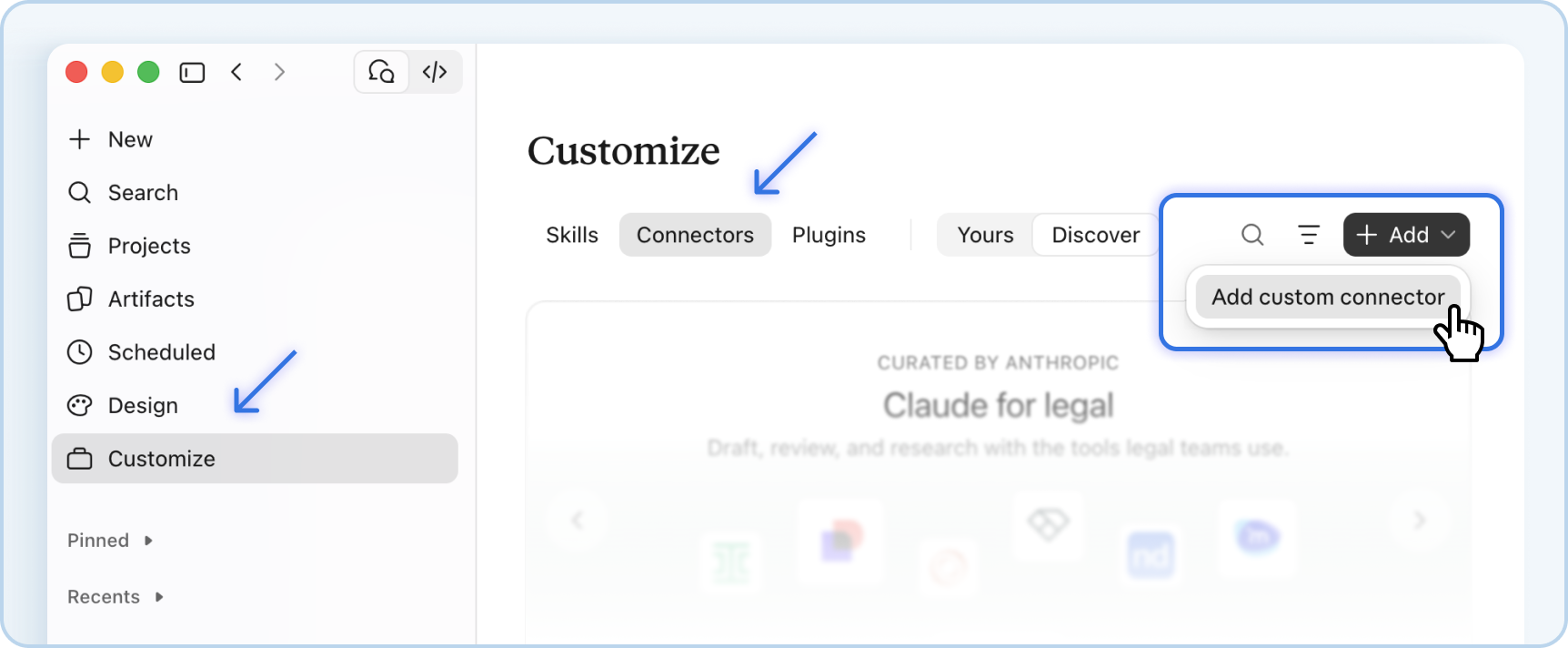
In Claude, open Customize → Connectors, select + Add and choose Add custom connector.
2. Add the Agent.
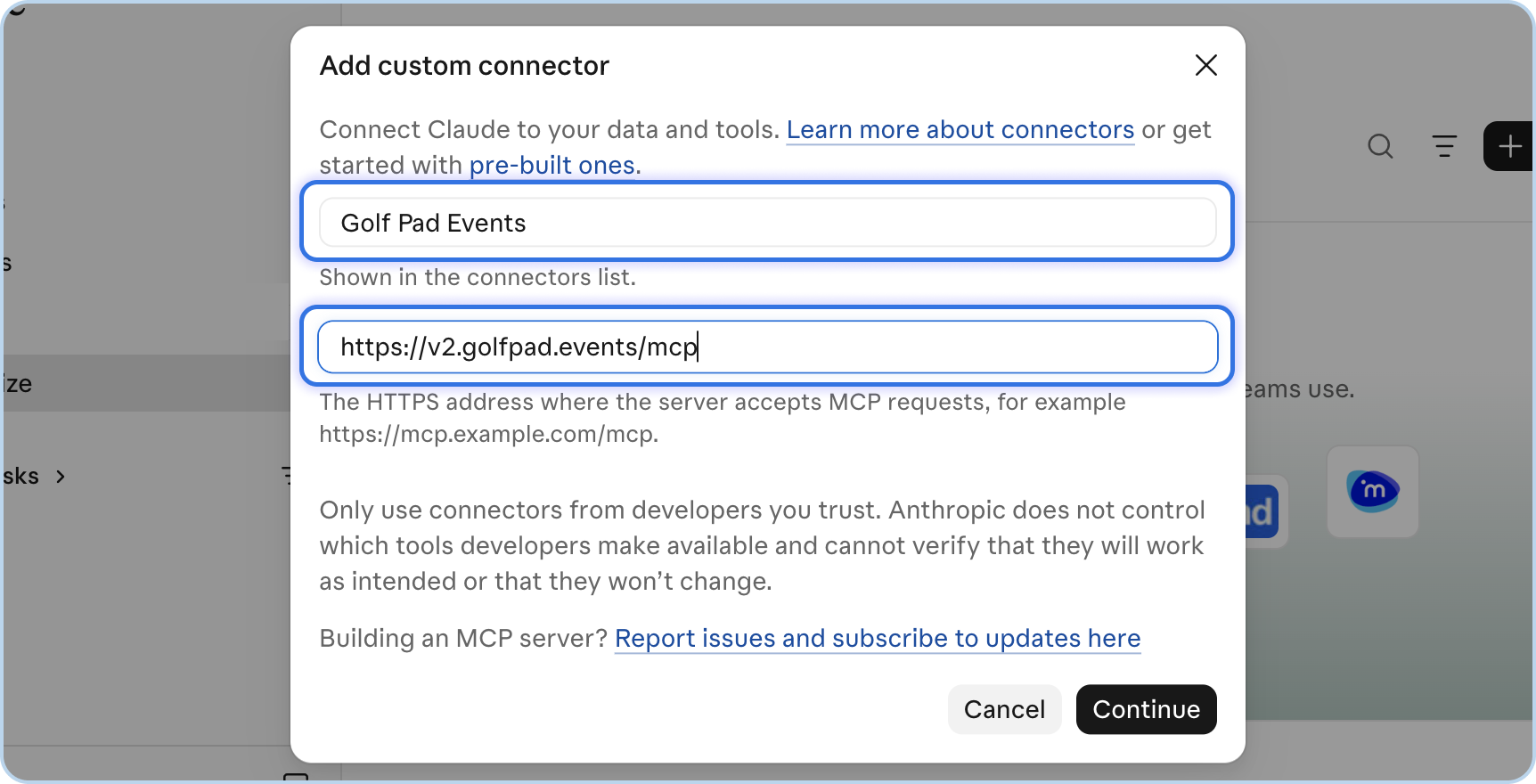
Name the connector Golf Pad Events, paste https://v2.golfpad.events/mcp into the address field and select Continue.
3. Sign in.
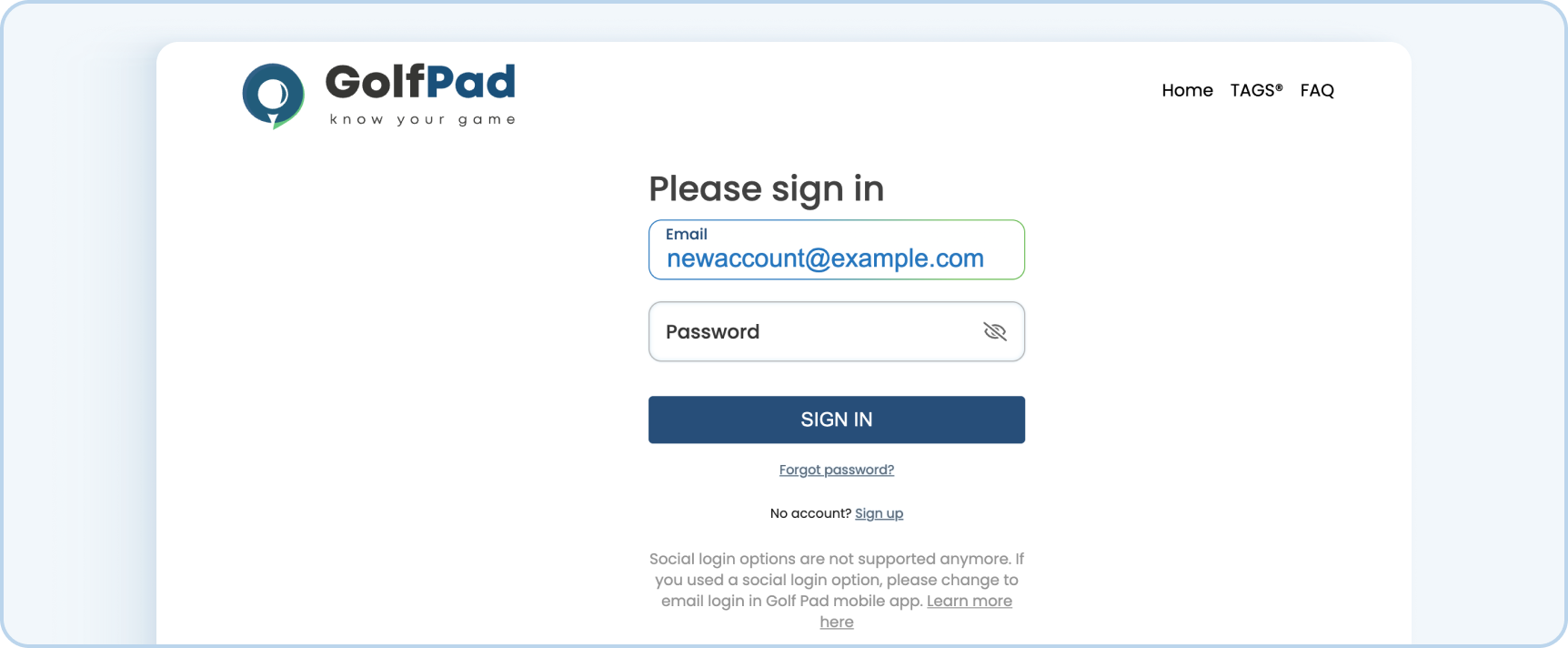
Keep the suggested sign-in settings and select Add. When asked, sign in with your Golf Pad Events account and allow access.
4. Turn it on in a chat.
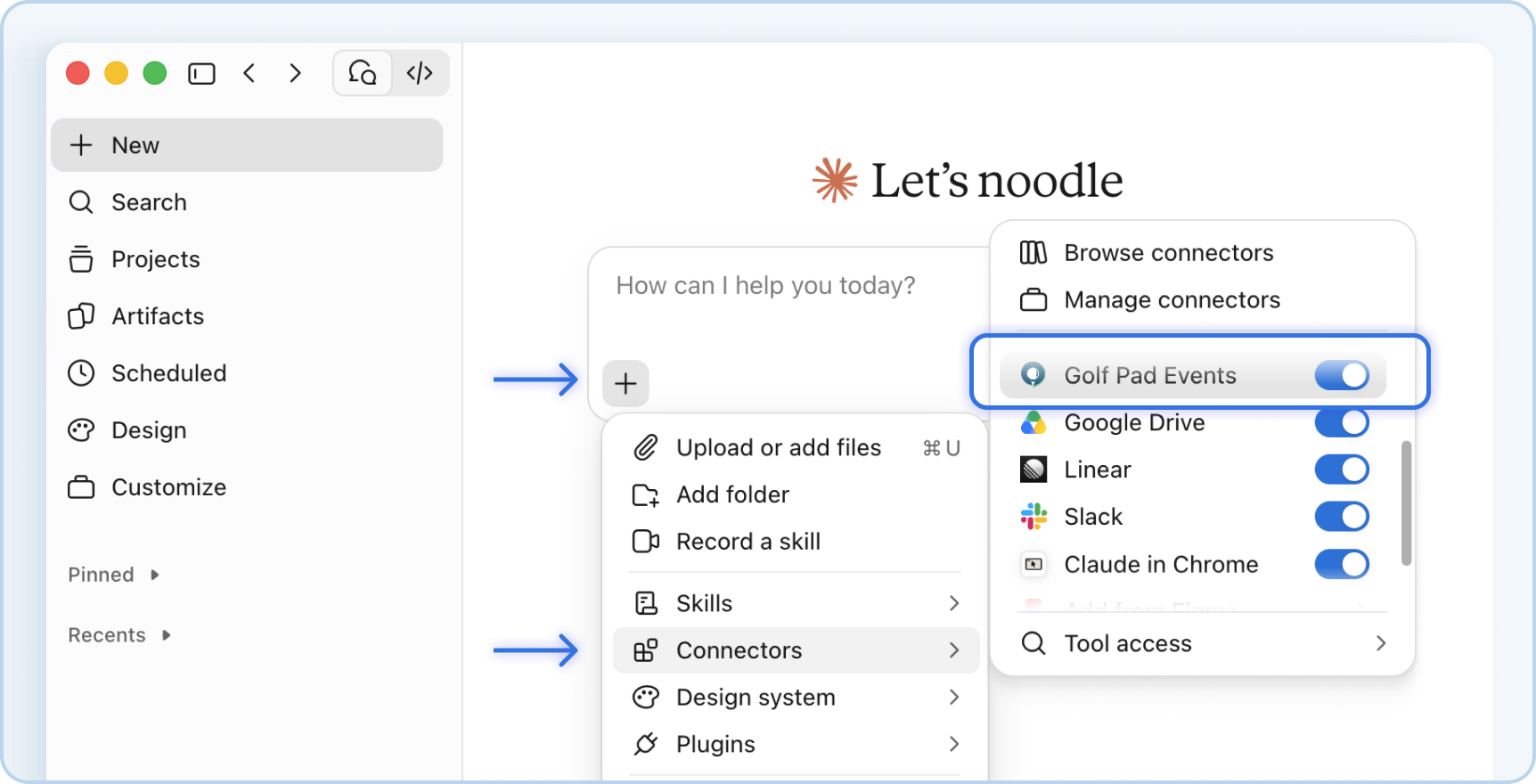
Start a new chat, select + → Connectors and turn on Golf Pad Events.
That's it. You're ready to set up your first event.
Connect ChatGPT
Connect Golf Pad Events to ChatGPT on the web.
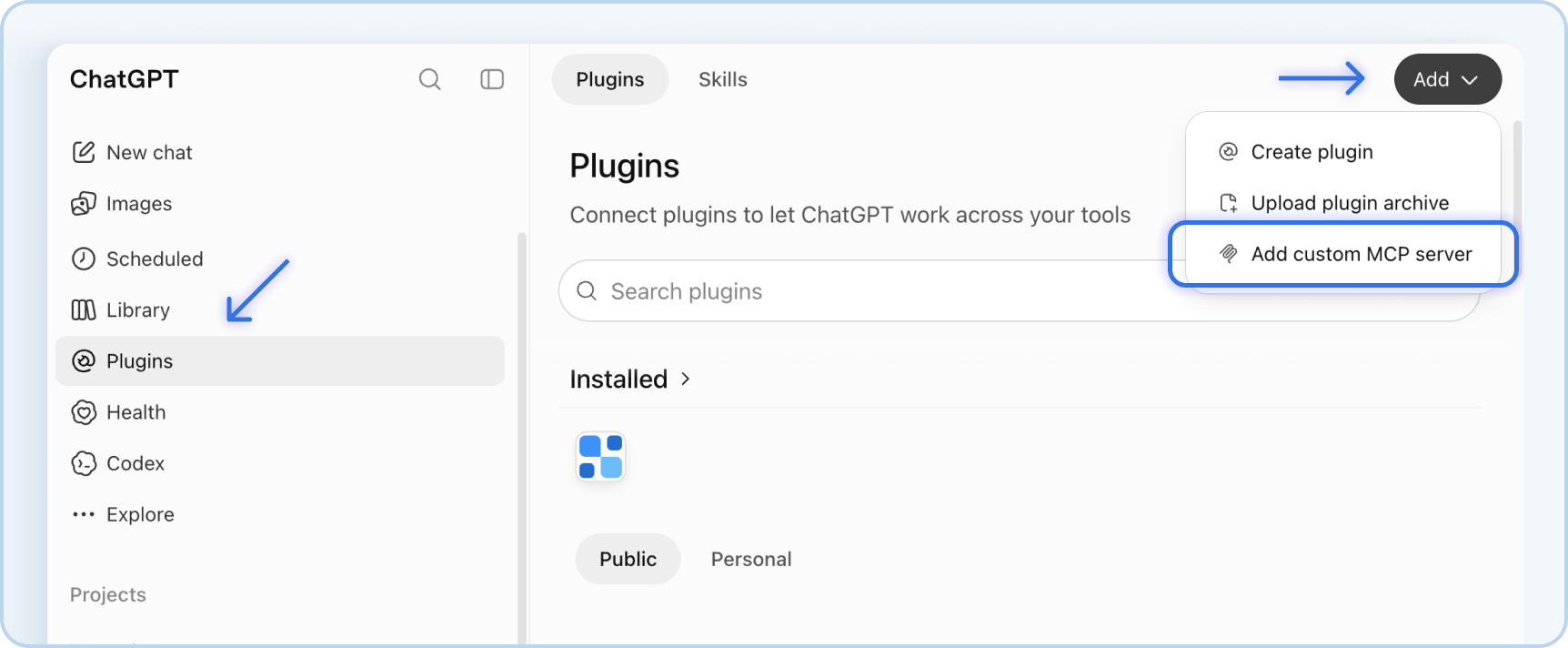
1. Open Plugins.
In ChatGPT, open Plugins, select + and choose Add custom MCP server.
2. Add the Agent.
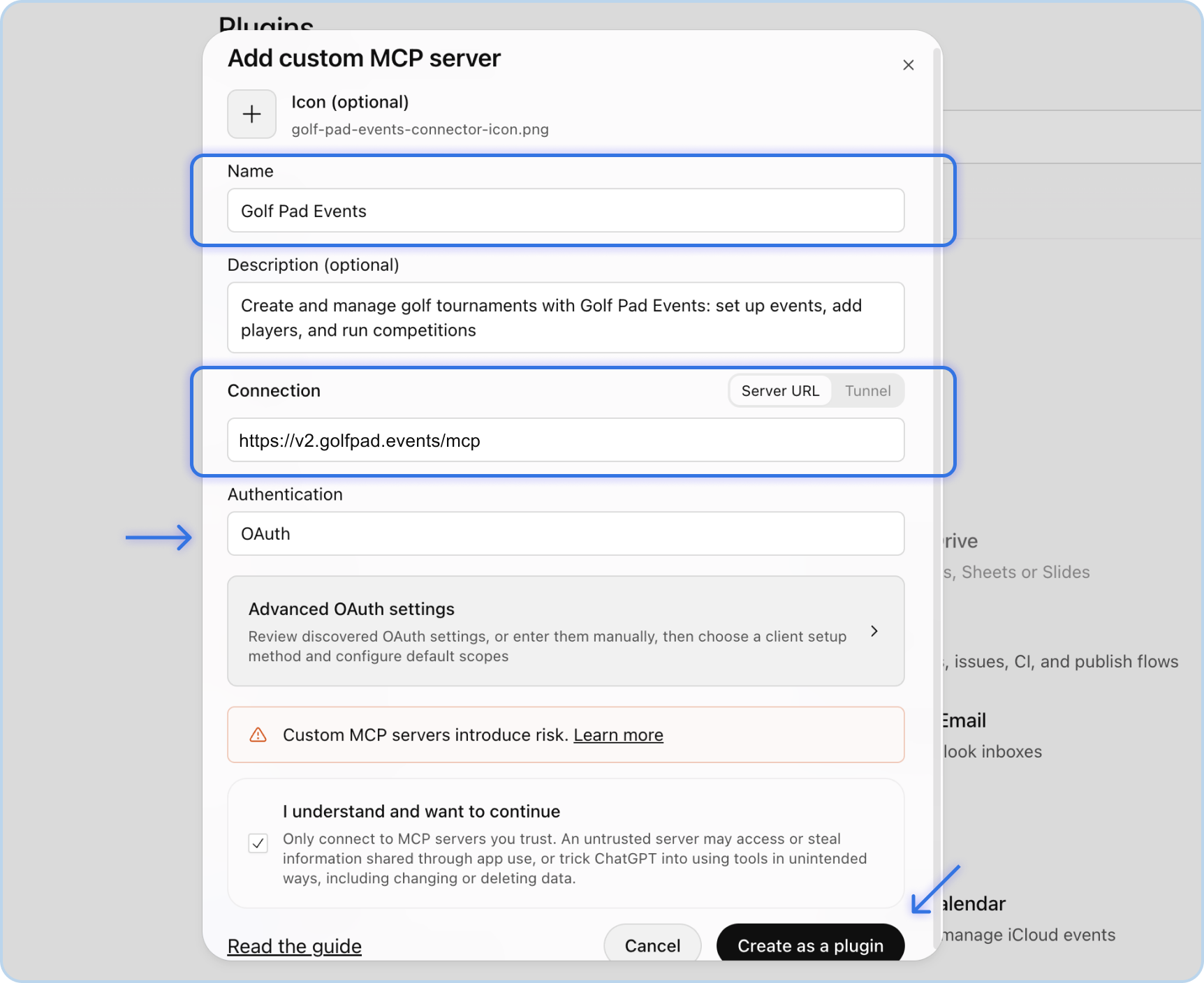
Name it Golf Pad Events and paste https://v2.golfpad.events/mcp as the server URL. For authentication, choose OAuth. Confirm I understand and want to continue, then create the plugin.
Optional
Add a description and an icon so the plugin is easy to spot.
- Copy this description: Create and manage golf tournaments with Golf Pad Events: set up events, add players, and run competitions
- And download this icon: golf-pad-events-connector-icon.png
3. Install it and sign in.
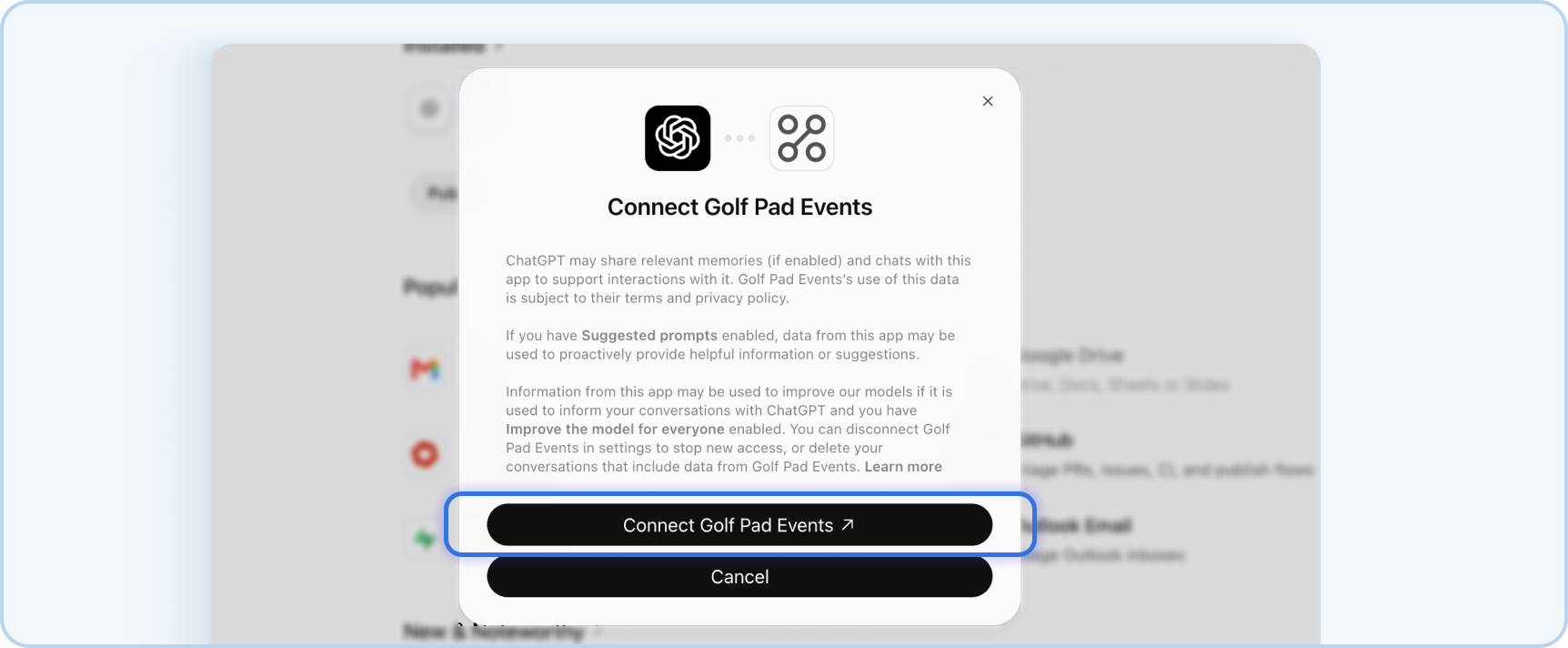
In your plugins, find Golf Pad Events, select + to install it and sign in with your Golf Pad Events account.
4. Start using Golf Pad Events.
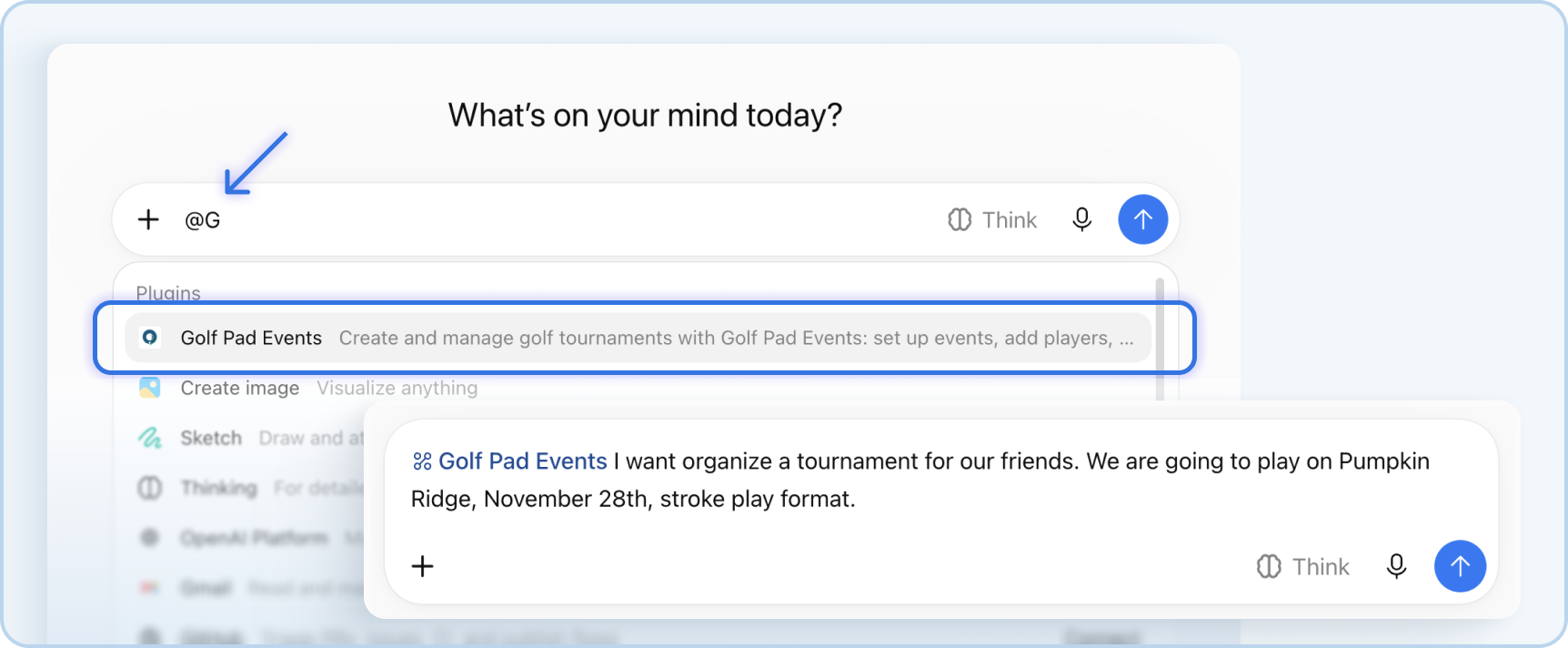
Open a new chat, type @ and choose Golf Pad Events. Then ask ChatGPT to help you set up your first event.
That's it. You're ready to set up your first event.
Try your first request
In a new chat with the Agent turned on, send:
"Set up a stroke play event for next Saturday at Pine Ridge, first tee time 10:30."
The Agent shows you what it's about to create and waits for your OK. To see everything it can do, read What Can the Agent Do? or ask it: "What can you do with Golf Pad Events?"
Connect another AI assistant
The Agent works with any AI assistant that supports MCP. Depending on the app, this may be called connectors, integrations, tools or MCP servers. The steps differ from app to app, but they usually look like this:
- Open your assistant's settings and find where you add connectors or MCP servers.
- Add a new remote server (it may be called a remote MCP server, custom connector or HTTP server) and paste https://v2.golfpad.events/mcp.
- If asked how to sign in, choose OAuth and sign in with your Golf Pad Events account.
- Turn on Golf Pad Events in a new chat.
Not sure where to find these settings? Ask your assistant: "How do I add a remote MCP server with the address https://v2.golfpad.events/mcp?" It can walk you through its own menus.
Troubleshooting
- I can't find where to add the Agent. Use Claude or ChatGPT on the web, where these settings are easiest to find. On a work or school account, your admin may have turned off custom connectors or apps.
- Sign-in doesn't work. Sign in with the Golf Pad Events account from your Early Access email.
- The assistant doesn't use the Agent. Make sure Golf Pad Events is turned on in the chat (Claude) or picked with @ (ChatGPT), then try again in a new chat.
Still stuck?
Email us at support@golfpadgps.com or schedule an online session with our team.
Was this article helpful?
That’s Great!
Thank you for your feedback
Sorry! We couldn't be helpful
Thank you for your feedback
Feedback sent
We appreciate your effort and will try to fix the article